Captions aren't appearing?
Almost every report we get comes down to the microphone, and both causes take under a minute to check. Start here before anything else.
Check this first · About 1 minuteBefore you subscribe, make sure you have a microphone
Classroom Captions listens to you speak and turns that into text. If the computer has no microphone connected, the extension cannot produce captions — there is nothing for it to hear. Nothing else in the extension can work around that.
Most laptops have one built in. Many desktop computers and a lot of classroom podium PCs do not, and an external mic or a headset has to be plugged in and selected as the input device first. If you teach from a desktop, check this before starting a trial or paying, so you aren't troubleshooting during a lesson.
Quick test: open your computer's sound settings, find the input or recording section, and speak. If the input meter moves, you have a working microphone.
Check the captions tab, not the tab you're teaching from
When you press Start Captions, the extension opens a small pinned tab that does the listening. Its address starts with chrome-extension:// and ends in recognizer.html. Your captions appear on the page you're teaching from, but the microphone belongs to that pinned tab.
If captions never start, switch to that pinned tab and look at the left end of the address bar. That's where Chrome reports whether the microphone is actually on.
Make sure microphone access is switched on for that tab
Click the microphone icon at the left end of the address bar. Chrome opens a small panel. Choose Continue allowing Live Classroom Captions to access your microphone, then press Done.
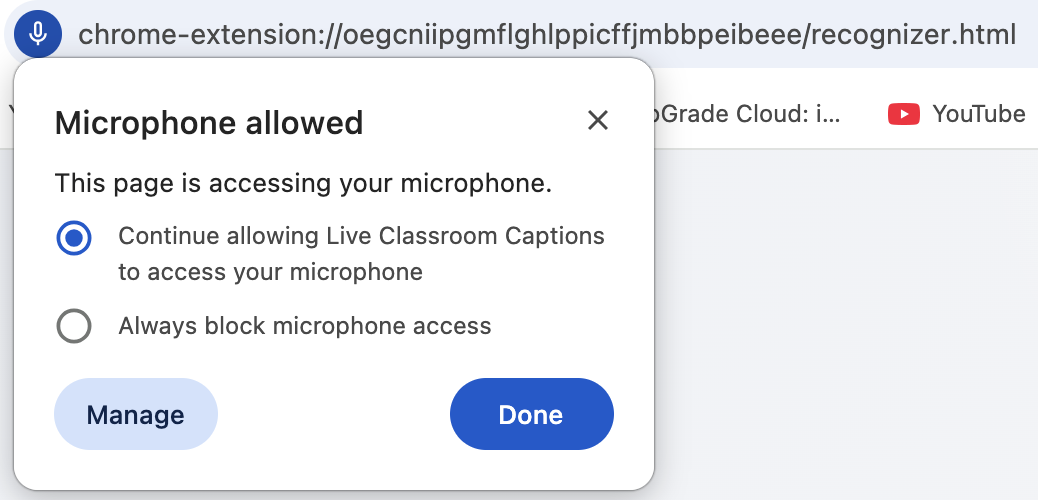
If the panel says access is blocked instead, switch it to allow and reload the tab. Chrome remembers the choice for this tab, so you only do this once.
If the microphone icon disappears before you can click it
When you press Try again on the captions tab, the microphone icon appears in the address bar and then slides away again almost immediately. That's Chrome's animation, not a fault, but it gives you only a moment.
Press Try again and click the icon straight away, while it's still sliding. It opens the same panel shown above. If you miss it, press Try again and watch for it — it comes back every time.
Still nothing?
- Another app may be holding the microphone. Zoom, Teams, Meet, and recording software can hold it exclusively. Close them and press Try again.
- Check the input device. If a headset was unplugged mid-session, the computer may have switched to an input that isn't there.
- Don't close the pinned captions tab. Closing it ends the session and clears any annotations.
- Captions can't run on Chrome's own pages. The Web Store and settings tabs are off limits to every extension. Open a normal page and start again.
If you've checked all of this and captions still won't start, email support@classroomcaptions.com and say which step you got to. That tells us more than anything else you could send.
Nothing here matched?
The user manual covers every screen in detail, and Getting Started walks through a first session end to end.